Live preview · Letter Landscape (11" × 8.5") · Black lines
Printable Ruler
A paper ruler you can print and cut out when there is no real one to hand. The page has centimetre rulers marked in millimetres and inch rulers marked in sixteenths, drawn at actual size.
Download saves a vector PDF in the size and color selected below, no print dialog needed.
Other formats:
Direct PDF:Printable Ruler Letter L PDFPrintable Ruler A4 L PDF
Choose a different paper size:
Choose a different line color:
Great for
- Measuring when you have no ruler nearby
- Classroom sets for measurement lessons
- Checking that your printer prints at true scale
- Sizing rings, screws and small parts
Printable Ruler at a glance
| What it is | Cut-out paper rulers in centimeters and inches, accurate when printed at 100 percent. |
|---|---|
| Category | Math & Learning |
| Paper sizes | Letter Landscape (11" × 8.5"), A4 Landscape (297 × 210 mm), Tabloid Landscape (17" × 11") |
| Line colors | Faint, Light, Gray, Dark, Black, Blue, Green (default: Black) |
| Format | Vector PDF at exact physical scale (Letter L PDF, A4 L PDF), PNG or SVG, or print directly from the browser |
| Price & license | Free. No signup or watermark. Printed sheets may be used for personal, classroom and commercial work. |
About printable ruler
A printable ruler is only as accurate as the print. This one is drawn in real millimetres, so when the page is printed at 100 percent scale each centimetre mark is exactly one centimetre from the next and each inch mark exactly 25.4 mm from the next. Printed that way it is accurate to within the tolerance of your printer, typically a fraction of a millimetre over the length of the page. The same sheet is a quick test of your print settings: if the ruler disagrees with a real one, every other template you print at those settings is off by the same proportion.
What's on the page
Five ruler strips on a landscape page, alternating metric and imperial: three centimetre rulers and two inch rulers on Letter and A4. Centimetre rulers have a tick at every millimetre, a longer tick every 5 mm and a numbered tick every centimetre. Inch rulers have ticks at every 1/16 inch with longer ticks at eighths, quarters, halves and whole inches. On US Letter the rulers run to 24 cm and 9 inches; on A4 to 26 cm and 10 inches; on 11×17 to 39 cm and 15 inches. Each strip has a cutting outline, and the zero mark sits 5 mm inside the left end.
How to use it well
Verify before you trust it
Compare the printed ruler against a credit card, which is 85.6 mm wide by international standard, or against a known ruler. If it matches, your print settings are correct.
Print on card stock
Ordinary paper curls and stretches with humidity. Card stock of 65 lb / 176 gsm or heavier gives a ruler that stays flat and lasts.
Measure from the zero mark
Zero is the first tick, 5 mm in from the end of the strip, not the cut edge. Line the zero tick up with the start of what you are measuring.
Tape two together for longer lengths
Overlap the end of one centimetre ruler on the zero mark of the next and tape them. The 24 cm rulers on Letter make a 48 cm rule.
Common mistakes to avoid
- Printing with 'Fit to page' or 'Shrink to fit'. This is the one template where it matters most: the ruler comes out about 4 percent short, so 10 cm measures 9.6 cm.
- Measuring from the cut edge instead of the zero tick, which adds 5 mm to every reading.
- Trusting it for precision work. A paper ruler is fine to the nearest millimetre; for machining or engineering tolerances use a steel rule or calipers.
FAQ, Printable Ruler
Is the printable ruler accurate?+
Yes, if printed at 100 percent scale or from the downloaded PDF with 'Actual size' selected. Check it against a real ruler or a credit card (85.6 mm wide) the first time you print.
How do I print a ruler at actual size?+
In the print dialog set Scale to 100 percent (Chrome calls it Default) and never use 'Fit to page'. In a PDF viewer choose 'Actual size'. Paper size in the dialog must match the paper in the printer.
How long are the rulers?+
24 cm and 9 inches on US Letter, 26 cm and 10 inches on A4, and 39 cm and 15 inches on 11×17 paper.
Why is the page landscape?+
So the rulers can run along the long side of the paper and be as long as possible. Set the print orientation to landscape if your printer does not pick it up automatically.
Can I check my screen size with it?+
Only on paper. A ruler shown on screen depends on the display's pixel density, so it is not reliable; print the page instead.
Why do my other printed templates come out the wrong size?+
For the same reason a ruler would: the print dialog scaled the page. The guide to printing graph paper at actual size covers the fix for each browser.
Printing tips for best results+
- 1. Click Print above. A new tab opens the template at exact size.
- 2. The print dialog appears automatically. Set Scale to 100%. Never "Fit to page", which silently shrinks every cell.
- 3. Set Margins to None or Minimum so the grid reaches the page edge.
- 4. For a PDF, click Download instead. It generates a vector PDF directly without going through the printer driver.
More detail in the guide to printing graph paper at actual size. Need a spacing that isn’t listed? Use the graph paper generator.
You might also like
Math & Learning
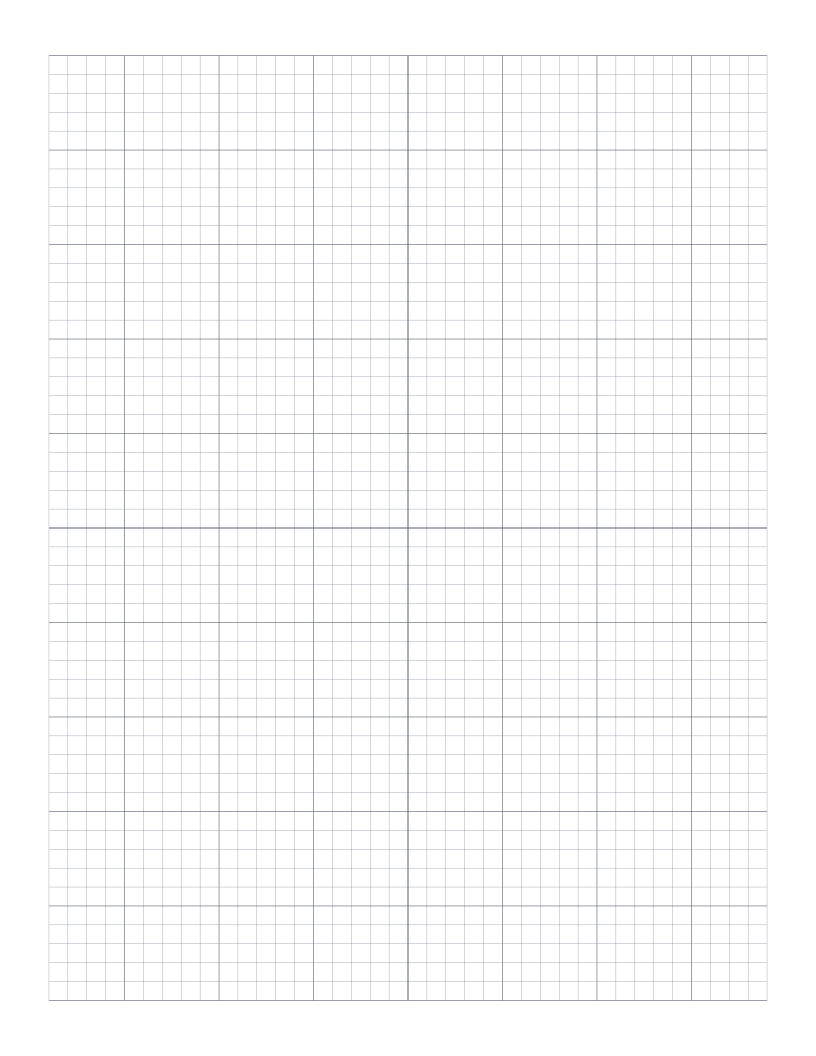
Blank Coordinate Plane
Four-quadrant coordinate plane with axes but no numbers, so you set the scale.
Math & Learning
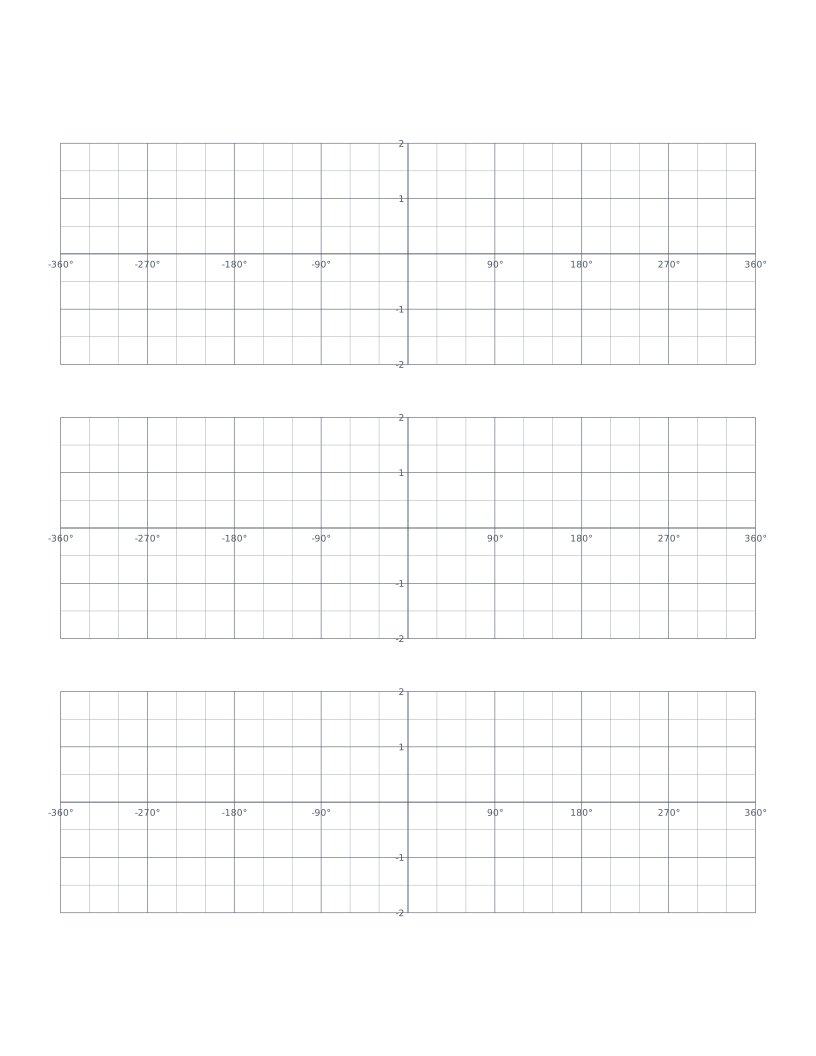
Trigonometry Graph Paper (Degrees)
Axes marked in degrees from -360° to 360° for graphing sine, cosine and tangent.
Math & Learning
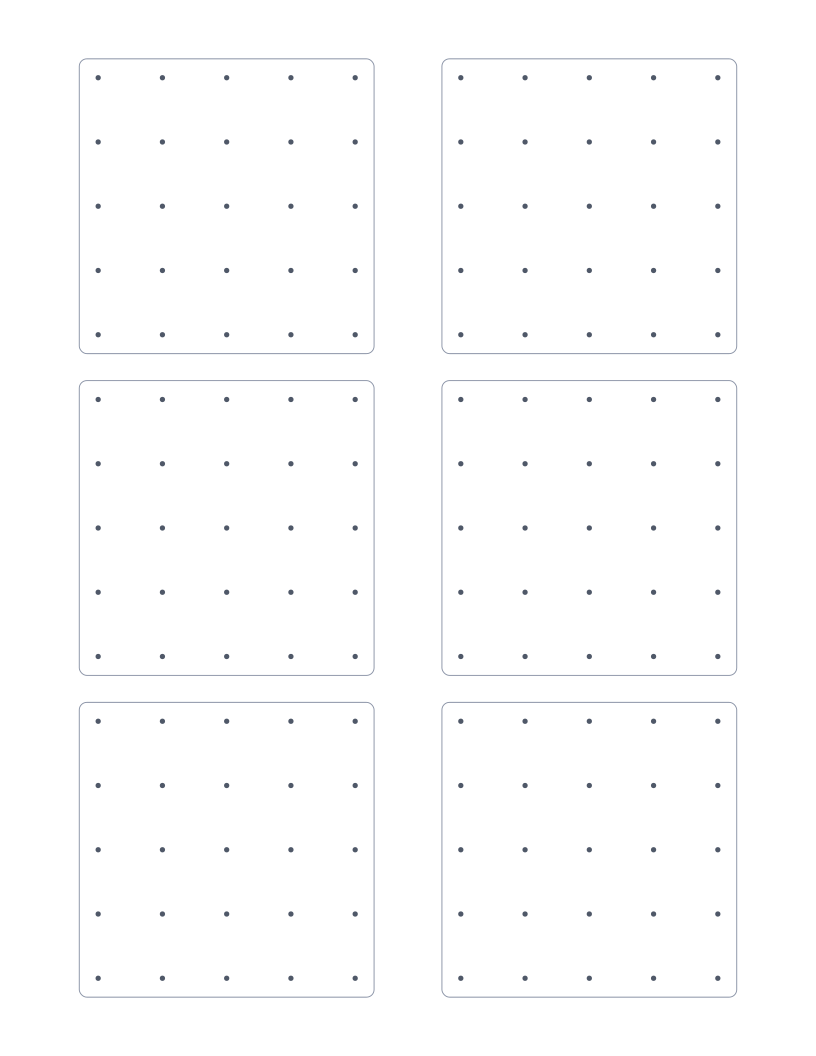
Geoboard Paper (5×5)
Six 5×5 geoboard templates per page for recording shapes made with rubber bands.
Math & Learning
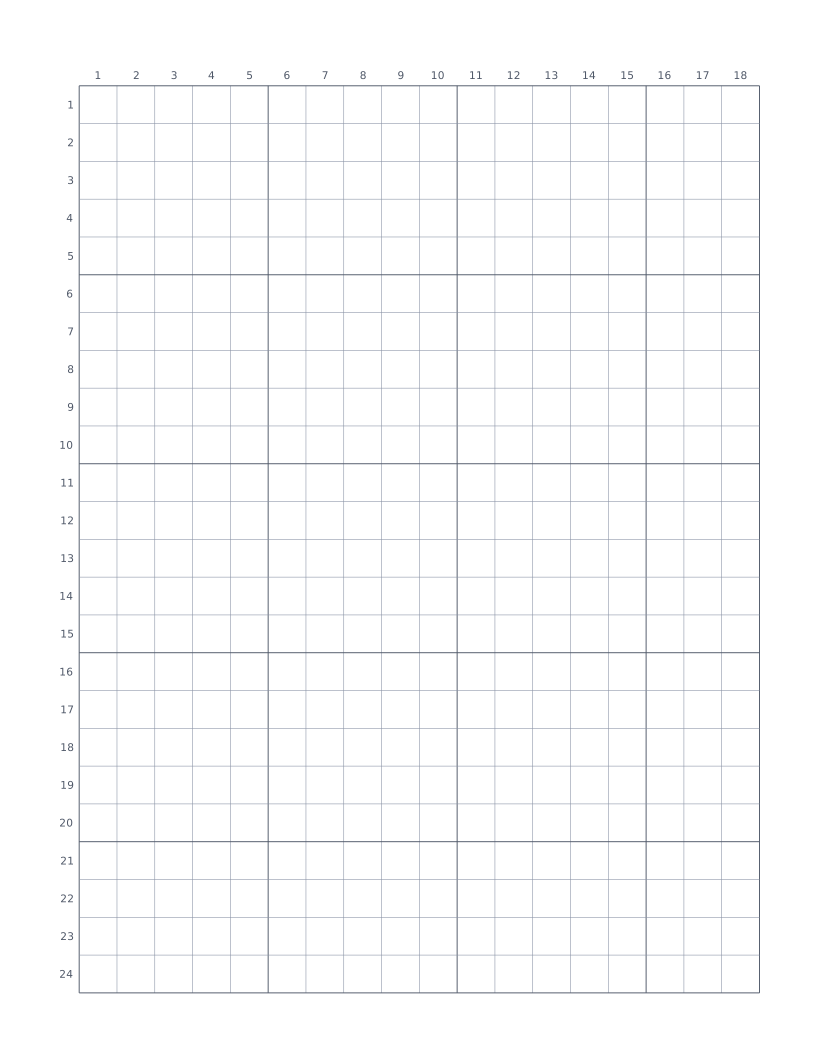
Numbered Grid Paper
1cm grid with columns numbered across the top and rows down the side.