Live preview · Letter (8.5" × 11") · Green lines
Ledger Paper (2 Column)
Two-column ledger paper has a date column, a wide description column and two amount columns. It is the simplest columnar layout: one column for money in and one for money out, or debit and credit.
Download saves a vector PDF in the size and color selected below, no print dialog needed.
Other formats:
Direct PDF:Ledger Paper (2 Column) Letter PDFLedger Paper (2 Column) A4 PDF
Choose a different paper size:
Choose a different line color:
Great for
- Debit and credit journals
- Petty cash and cash books
- Club and household income and expenses
- Accounting class journal entries
Ledger Paper (2 Column) at a glance
| What it is | Columnar paper with date, a wide description and two amount columns. |
|---|---|
| Category | Writing & Notes |
| Paper sizes | Letter (8.5" × 11"), A4 (210 × 297 mm), A5 (148 × 210 mm), Half Letter (5.5" × 8.5"), B5 (176 × 250 mm), Legal (8.5" × 14"), 11" × 17", A3 (297 × 420 mm), A2 (420 × 594 mm), Poster (18" × 24"), Movie Poster (27" × 40") |
| Line colors | Faint, Light, Gray, Dark, Black, Blue, Green (default: Green) |
| Format | Vector PDF at exact physical scale (Letter PDF, A4 PDF), PNG or SVG, or print directly from the browser |
| Price & license | Free. No signup or watermark. Printed sheets may be used for personal, classroom and commercial work. |
About ledger paper (2 column)
The two-column journal is the first form taught in bookkeeping. Each transaction is written on its own line with the amount entered in the left money column for a debit or the right for a credit. With only two amount columns, most of the page width is left for the description, which suits entries that need explaining.
What's on the page
A framed table with a header band and 35 rows at 7 mm spacing on US Letter (37 on A4). Columns from the left: date (18 mm), description (about 118 mm on Letter) and two money columns of 28 mm, each with a hairline separating cents.
How to use it well
Head the columns
Write Debit and Credit, or In and Out, above the money columns before the first entry.
Total both columns
At the foot of the page, total each column. In a balanced journal the two totals are equal.
Indent credits
By convention the account credited is written indented under the account debited.
Common mistakes to avoid
- Putting a running balance in one of the two columns. If you need income, expense and balance, use 3 column ledger paper.
- Erasing mistakes. Strike through with a single line and write the correction beside it.
FAQ, Ledger Paper (2 Column)
What are the two columns for?+
Usually debit and credit, or money in and money out.
How many rows are on the page?+
35 on US Letter and 37 on A4.
Can I change the green lines?+
Yes, use the colour picker to switch to Gray, Blue or Black.
Printing tips for best results+
- 1. Click Print above. A new tab opens the template at exact size.
- 2. The print dialog appears automatically. Set Scale to 100%. Never "Fit to page", which silently shrinks every cell.
- 3. Set Margins to None or Minimum so the grid reaches the page edge.
- 4. For a PDF, click Download instead. It generates a vector PDF directly without going through the printer driver.
More detail in the guide to printing graph paper at actual size. Need a spacing that isn’t listed? Use the graph paper generator.
You might also like
Writing & Notes
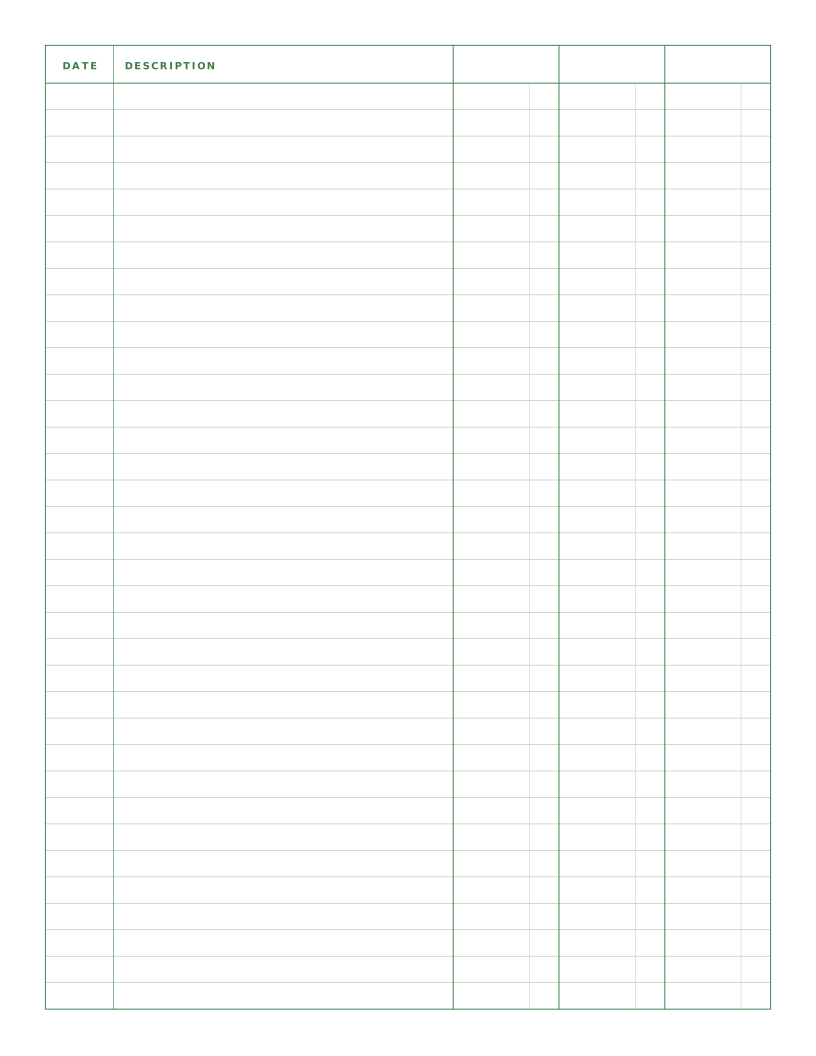
Ledger Paper (3 Column)
Columnar paper with date, description and three amount columns for debit, credit and balance.
Writing & Notes
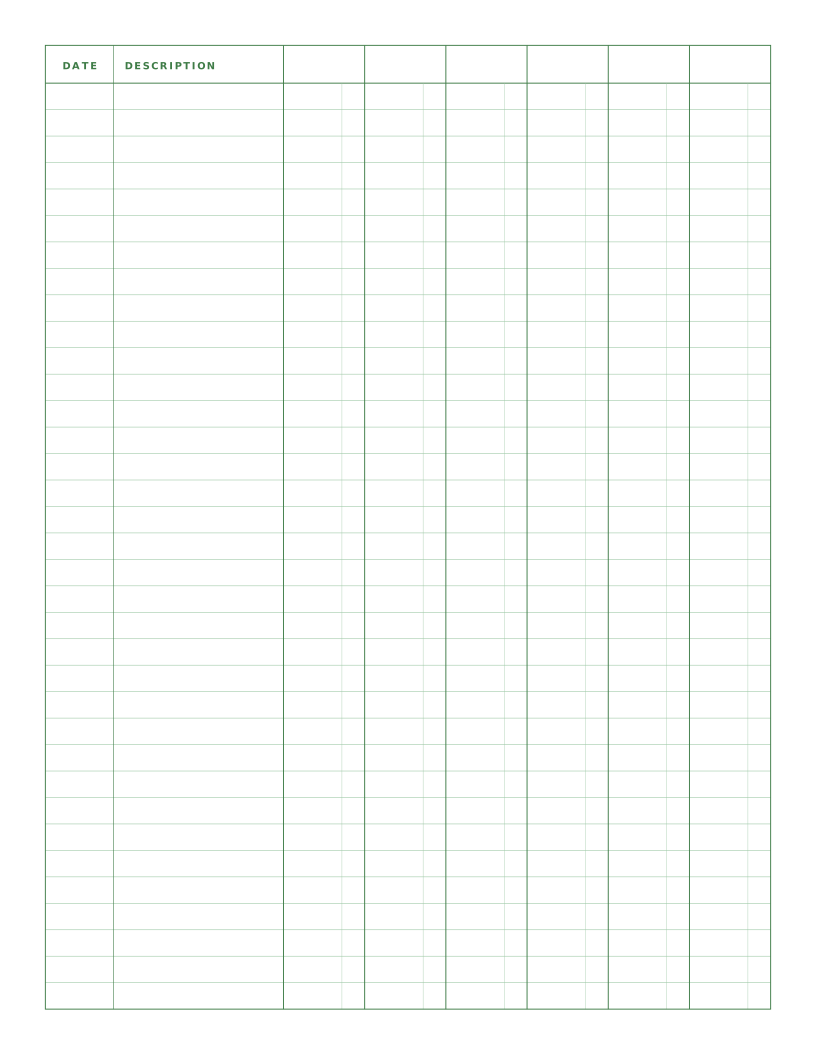
Ledger Paper (6 Column)
Columnar paper with date, description and six amount columns for categorised records.
Writing & Notes
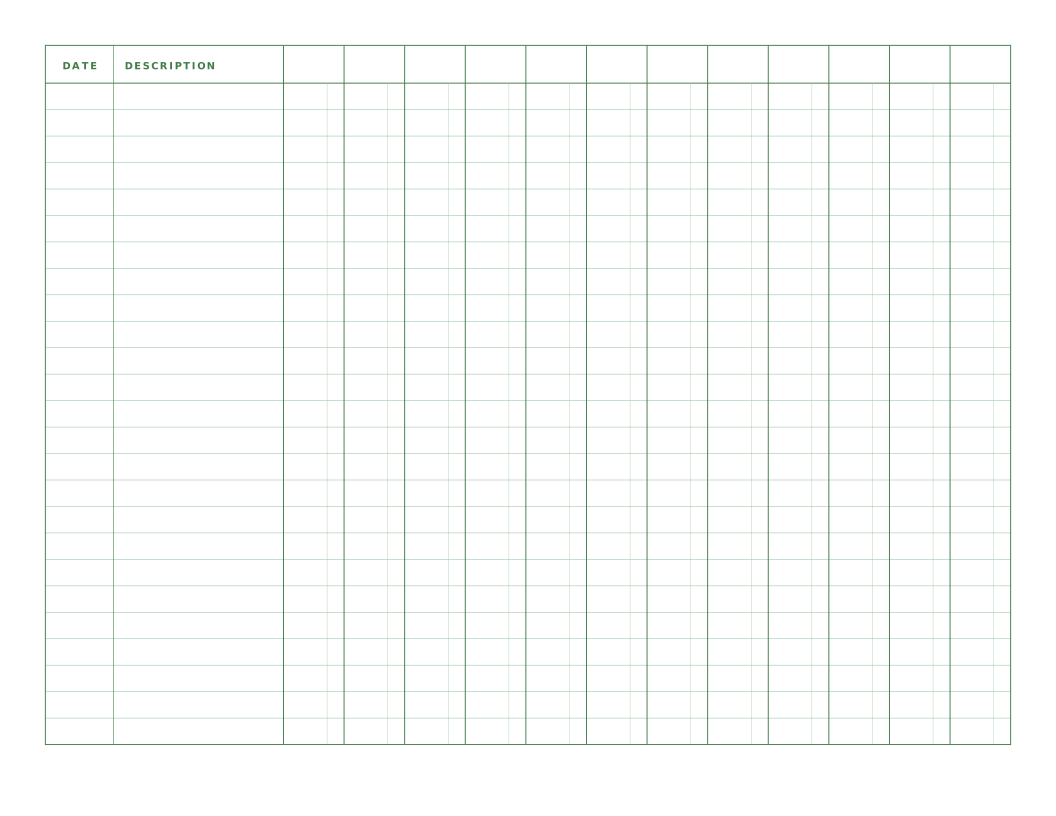
Ledger Paper (12 Column, Landscape)
Landscape columnar paper with twelve amount columns, one for each month.

Writing & Notes
Cornell Notes Paper
The famous Cornell note-taking layout: cue column, main notes and summary band.