Live preview · Letter (8.5" × 11") · Dark lines
Kanban Board
A printable Kanban board: three columns labelled TO DO, DOING and DONE, each with sticky-note-sized placeholder rectangles. Pin it on a wall, post-it the tasks, and move them across as work progresses.
Download generates a crisp vector PDF directly, no print dialog needed.
Choose a different paper size:
Choose a different line color:
Great for
- Personal task tracking and weekly planning
- Small-team workflow visualisation
- Family chore or project boards
- Classroom group projects and homework tracking
Kanban Board at a glance
| What it is | Three-column Kanban board (To Do / Doing / Done) with sticky-note placeholders: the classic personal or team workflow board. |
|---|---|
| Category | Planning & Productivity |
| Paper sizes | Letter (8.5" × 11"), A4 (210 × 297 mm), 11" × 17", Legal (8.5" × 14"), A3 (297 × 420 mm), A2 (420 × 594 mm), Poster (18" × 24"), Movie Poster (27" × 40") |
| Line colors | Faint, Light, Gray, Dark, Black, Blue, Green (default: Dark) |
| Format | Vector PDF download at exact physical scale, or print directly from the browser |
| Price & license | Free. No signup or watermark. Printed sheets may be used for personal, classroom and commercial work. |
About kanban board
Kanban is a workflow visualisation method developed inside Toyota's manufacturing operations in the late 1940s and adopted by software development teams (and then much wider) in the late 2000s. The core idea is brutally simple: every task exists as a card; every card is in one of a small number of states (typically To Do, Doing, Done); as work moves, cards move. The board makes the workflow visible. You can see at a glance how much is queued, how much is in progress, and how much is done. Two things make this powerful. First, it externalises memory — you don't have to keep a mental list of in-progress work, the board does it for you. Second, it constrains in-progress work — the Doing column physically can't hold more cards than it can fit, which forces the user to finish things rather than start new ones. Modern digital Kanban tools (Trello, Jira, GitHub Projects) inherit this exact format. The paper version is in some ways the original and still beats the digital versions for tight personal workflows: it's always visible without a screen, the act of physically moving a card creates a kinesthetic reinforcement, and a wall-mounted board can be seen by a whole team at a glance.
What's on the page
Three columns of equal width labelled TO DO, DOING, and DONE. Each column has a header band at the top and a body area below with rounded-rectangle placeholders sized for standard sticky notes (about 3×3 inches when printed at Letter). The placeholders are visual guides; you write tasks on sticky notes (or directly in the placeholders if not using stickies) and move them across as work progresses. A single bold frame surrounds the whole board.
How to use it well
Limit work in progress
The single most important Kanban rule: don't have too many cards in DOING at once. The point of the format is to constrain in-progress work and finish things before starting new ones. A common rule for individuals is 3 max in DOING; for small teams, 2 per person. If the column gets crowded, stop pulling new cards.
Move cards rightward only
A card that goes from DOING back to TO DO has been abandoned or de-prioritised, which should be a deliberate decision, not an accident. Cards normally move rightward as work progresses. Backward movement is rare and worth examining when it happens.
Use one card per task, not per project
A card should be a single deliverable that can be marked done. 'Plan the wedding' is too big for one card; 'book the venue' is a card, 'pick the photographer' is another. Small cards move through DONE quickly, which is motivating; big cards stall in DOING for weeks, which is demoralising.
Review and clear the board weekly
Once a week, photograph the board (so you have a record), then move everything in DONE to a 'done this week' pile or notebook. Restart the cycle with an empty DONE column. The visual emptiness invites the next round of work without the historical clutter.
Common mistakes to avoid
- Letting DOING accumulate forever. The most common Kanban failure mode: tasks pile up in the middle column and never finish. Resist the temptation to start new tasks when the middle is already crowded — finish first.
- Using the board as a wishlist. TO DO is for things you intend to do soon, not for ideas you'd like to consider someday. A board with 50 cards in TO DO is no more useful than a 50-item bullet list. Keep TO DO short and curated; keep aspirations in a separate notebook.
- Forgetting to maintain it. A board that's not updated daily becomes a wall decoration. Five minutes per day (move cards, add new ones, remove finished ones) keeps it useful; less than that and it stops representing reality.
FAQ, Kanban Board
How is Kanban different from a [weekly planner](/graph-paper/weekly-planner)?+
A weekly planner is time-organised (Monday tasks here, Tuesday tasks there); a Kanban board is state-organised (queued, in progress, done — regardless of which day). For work that's mostly meetings and time-blocked deliverables, a planner is better. For work that's mostly variable-length tasks where 'finished' matters more than 'when', Kanban is better. Many people use both.
Do I need physical sticky notes?+
They're conventional and the kinesthetic feedback (peeling and re-sticking) is part of what makes the format engaging. But you can write directly in the placeholders with pencil and erase or cross out as cards move. Or, less commonly, use index cards thumb-tacked through the page. Whatever lets you actually maintain the board is the right approach.
Can I add more columns?+
Yes. Real teams often expand to TO DO / IN REVIEW / DOING / TESTING / DONE or similar. The three-column version on this template is the canonical minimum; for personal use it's almost always enough. If you find yourself wanting more, that's a sign the workflow is more complex than personal Kanban supports, and you might want a more elaborate tool.
Should I use this for software development?+
For prototype-level workflows, sure. For production team workflows, digital Kanban (Jira, Trello, GitHub Projects) usually wins because it integrates with code commits, deployment, and team chat. The paper version is best for solo workflows, family projects, or whiteboard-style team visibility where everyone is in the same room.
Where do I write the date a task was started or finished?+
Convention varies. Some people write the start date on the card when it enters DOING and the finish date when it moves to DONE; others just rely on the column position and ignore dates. For personal use, dates aren't usually needed; for shared boards where 'how long did this take?' matters, the dates are worth tracking.
Printing tips for best results+
- 1. Click Print above. A new tab opens the template at exact size.
- 2. The print dialog appears automatically. Set Scale to 100%. Never "Fit to page", which silently shrinks every cell.
- 3. Set Margins to None or Minimum so the grid reaches the page edge.
- 4. For a PDF, click Download instead. It generates a vector PDF directly without going through the printer driver.
You might also like
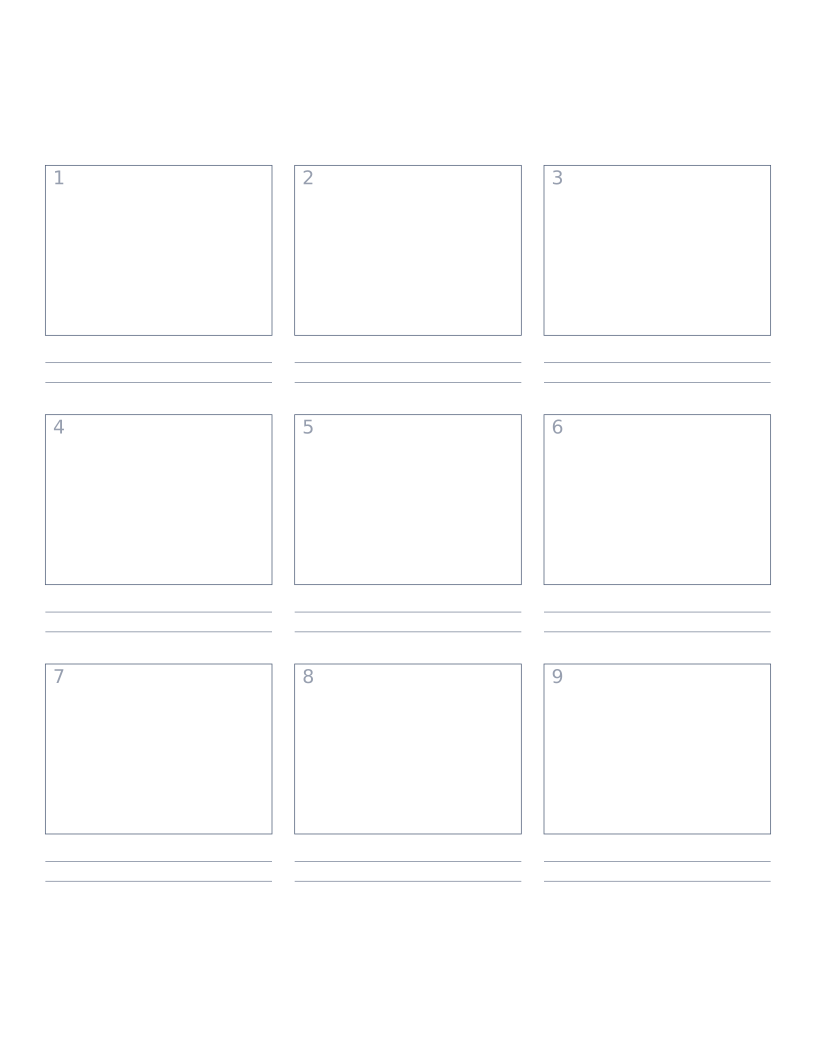
Storyboard Paper (3×3)
Nine-panel storyboard layout with caption space: for filmmakers, animators and UX designers.
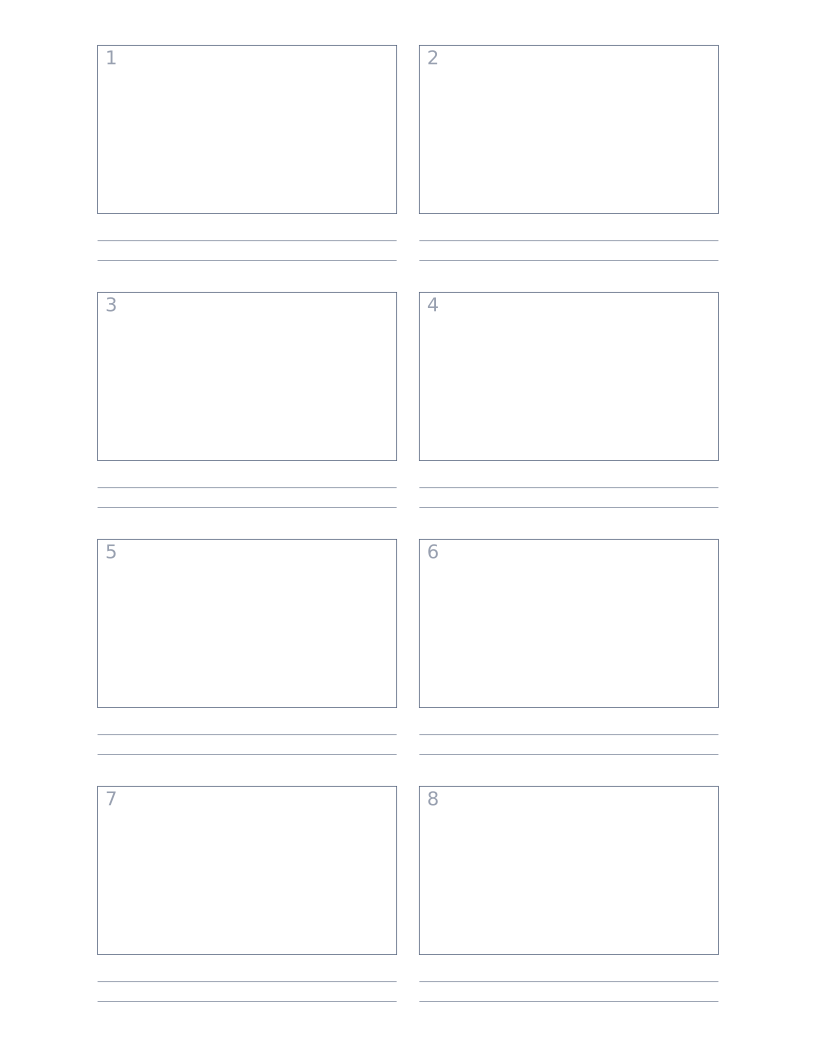
Storyboard Paper (2×4)
Eight-panel storyboard with widescreen 16:9 frames for video and film work.
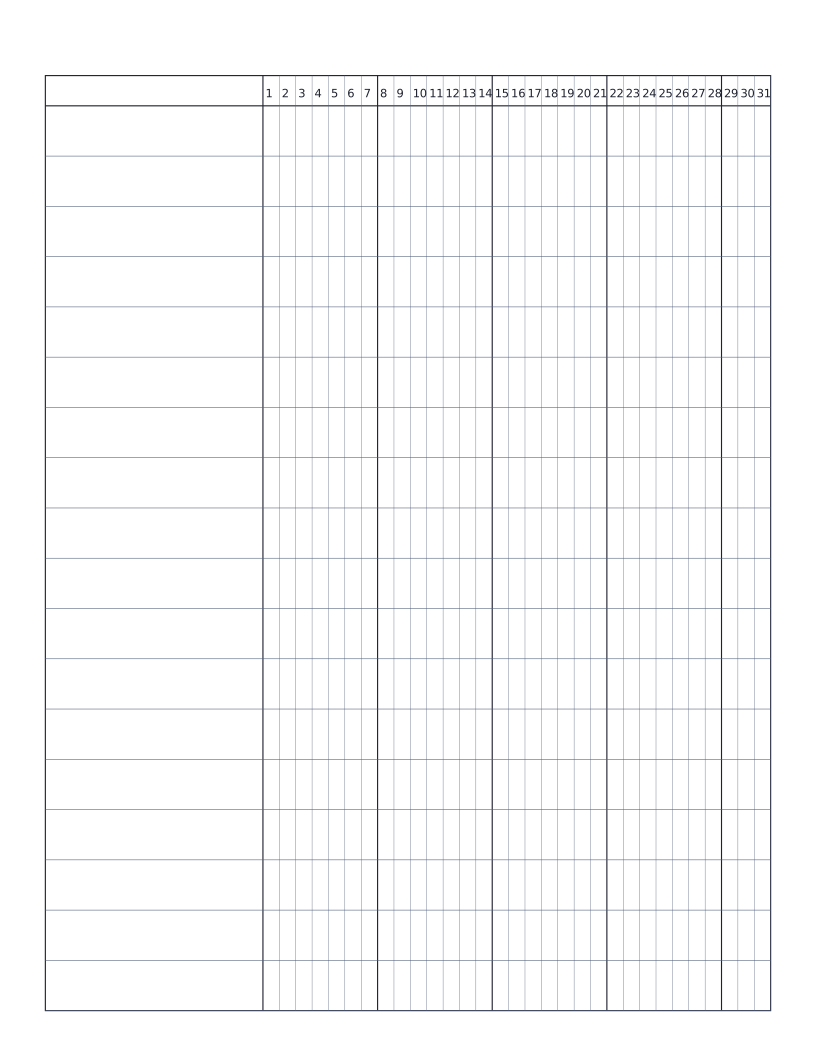
Habit Tracker (Monthly)
Monthly habit tracker: name column plus 31-day grid for marking off daily habits.
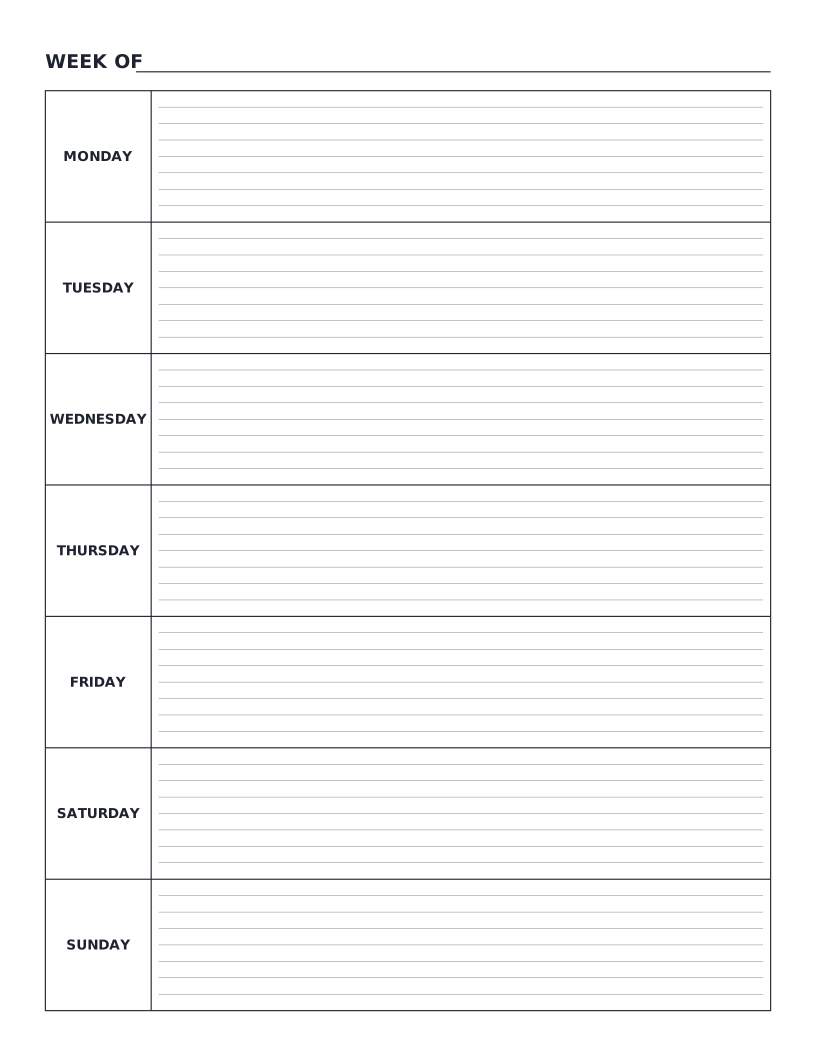
Weekly Planner
Monday-to-Sunday weekly planner: seven labelled day rows with writing lines for tasks, notes and appointments.